Getting Started
Everything you need to set up QuantKit Visor and start analyzing 0DTE options data.
About QuantKit Visor
Visor is a real-time options analytics terminal that runs on the data you already have: your Interactive Brokers feed, or a GexBot API key. Pick one; every panel adapts to what that feed provides, and you can switch between them later without restarting.
Built for futures and options daytraders who want gamma exposure and options structure in a single, streamlined workspace.
Every session is captured for full replay, so nothing gets missed and every setup can be reviewed.
Visor maps estimated dealer positioning: where hedging concentrates, which strike levels matter, and how volatility, gamma, vanna, charm and delta shape intraday price action, all in a clean, purpose-built interface.
Requirements
System Requirements
| Component | Requirement |
|---|---|
| Operating System | Windows 10 or later (We recommend Windows 11) |
| Processor | Any modern CPU (2015+) |
| Memory | 4 GB RAM minimum |
| Storage | 500 MB free disk space |
| Internet | Stable connection required for live data |
Data Feed Requirements
Visor needs one of the two feeds below. You do not need both, and the requirements differ entirely. See Which Feed Provides What for the coverage each one gives you.
Option A: GexBot
- GexBot subscription and API key. Your tier (Classic, State or Orderflow) determines which panels Visor can fill
- No brokerage account, no TWS or Gateway, and no market data subscriptions
Option B: Interactive Brokers
- Interactive Brokers account. A funded or paper trading account with IBKR
- TWS or IB Gateway. Either Trader Workstation (TWS) or IB Gateway must be installed and running
- API enabled. The IBKR API must be enabled in your TWS/Gateway settings (see Interactive Brokers setup)
On the IBKR path, these market data subscriptions apply:
- US Securities Snapshot and Futures Value Bundle. Required for real-time future price scale conversion and future options contracts (ES/NQ/CL)
- US Equity and Options Add-On Streaming Bundle. Required for streaming option data (Indices / ETF)
💡 Note
These market data subscriptions apply to the Interactive Brokers path only, and are managed through your IBKR account rather than through QuantKit. You can subscribe via Account Management > Market Data Subscriptions on the IBKR website. On the GexBot path they do not apply at all.
Download & Installation
Finding Your License
After purchasing QuantKit Visor on Whop, your license key will be available in your Whop Quantkit dashboard under the Software section.
Installation
- Download the latest Visor installer from here: Visor latest.
- Run the installer. Windows SmartScreen may show a warning since the app is new — click "More info" then "Run anyway" to proceed.
- Follow the installation wizard to complete the setup.
⚠️ Windows SmartScreen
Since QuantKit Visor is a new application, Windows SmartScreen may flag it as unrecognized. This is normal for newly published software. Click "More info" → "Run anyway" to install.
First Launch & License Activation
- Launch QuantKit Visor after installation.
- Enter your license key from Whop when prompted.
- The application will verify your license and activate your copy.
If your key is already in use on another computer, Visor tells you so and how to reset it yourself on Whop (see Account Management).
✨ Sample Data
Don’t have IBKR set up yet? You can download sample data to explore the interface and familiarize yourself with the charts before connecting to a live feed.
Once activated, proceed to Connecting to IBKR to set up your API connection.
Connecting Your Data Feed
Visor runs on either Interactive Brokers or GexBot. Set up the one you use; you can switch between them later in Settings without restarting.
Which Feed Provides What
Both feeds drive the same panels. What differs is coverage: Visor greys out a panel a feed cannot fill rather than showing invented numbers.
| Capability | IBKR | GexBot Classic | GexBot State | GexBot Orderflow |
|---|---|---|---|---|
| GEX, walls, VFlip, Vol/OI | Yes | Yes | Yes | Yes |
| Multi-expiration | 0DTE, NEXT, WEEKLY | 0DTE, NEXT, 90D | 0DTE, NEXT, 90D | 0DTE, NEXT, 90D |
| Vanna, charm, delta exposure | Yes | No | Yes (State model) | Yes |
| GEX Profile and State Gamma | No | No | Yes | Yes |
| Skew, ATM Volatility, GTBR | Yes | No | Yes | Yes |
| Daily VRP, vol spread, expected move | Yes | Yes | Yes | Yes |
| Order Flow: Options Activity | Yes | Yes | Yes | Yes |
| Order Flow: classified flows | No | No | No | Yes |
Classic is one model, on both feeds
Interactive Brokers and GexBot Classic run the same classic assumption: dealers long calls and short puts, with exposure computed per strike from gamma, open interest and the contract multiplier. The classic GEX read is equivalent on the two, and the walls, VFlip and Vol/OI weighting mean the same thing on both. What differs is only who does the arithmetic. On IBKR, Visor subscribes to the option chain and computes it on your desktop from the broker’s model greeks. On GexBot, the values arrive already computed and Visor plots them as sent, never recomputing them.
The IBKR path carries a little more
Because the raw option chain includes per-strike implied volatility, the IBKR path also fills the panels that depend on it: vanna, charm and delta exposure, Volatility Skew, the ATM Straddle and GTBR. GexBot Classic does not ship per-strike IV, so those panels stay greyed out on that tier rather than showing invented numbers. GexBot’s State and Orderflow tiers do provide it, which is why the table above fills those rows back in.
The two also differ on which expiries they carry: IBKR offers 0DTE, NEXT and WEEKLY, while every GexBot tier offers 0DTE, NEXT and the 90-day aggregate.
State is a different model, not a better Classic
GexBot’s State tier is flow-classified from customer imbalance rather than assumed from the call/put convention. It is a distinct read of the same market, not an upgraded Classic, and it carries its own walls and levels. State has no flip by design.
💡 Note
Classic GEX on either feed is a model estimate of dealer positioning under the standard call/put convention, not observed positioning. It is solid for index puts and aggregates, weaker for single call strikes and busy 0DTE strikes. IBKR gives no trade aggressor side, so flow classification is not possible on that feed at all.
GexBot Setup
The GexBot path needs no brokerage account and nothing running on your machine. Visor polls GexBot’s API directly with your key.
- Subscribe to GexBot and obtain your API key.
- In Visor, open Settings, and on the General tab set Data Feed to GexBot.
- Paste your key into API Key and save.
- Select your instrument and click Connect (bottom right of the app).
💡 Note
A missing or rejected key is reported and Visor disconnects, rather than showing “Connected” over an empty screen. Your GexBot key is stored in the Windows credential store, never written into a settings file. Each feed records its own session files, and the two are never blended in one recording.
Interactive Brokers: API Requirements
IBKR provides two distinct API connection methods for QuantKit Visor: TWS (Trader Workstation) and IB Gateway. Both offer identical data access, so choose based on your workflow preferences.
💡 Note
TWS and Gateway connect on different ports by default. If you switch between them, remember to update the port in Visor’s settings.
TWS Setup
- Open TWS and go to: File → Global Configuration → API → Settings
- Check "Enable ActiveX and Socket Clients"
- Check "Read-Only API" for additional safety
- Note the socket port number (default: 7496 for live, 7497 for paper)
💡 Info
We recommend keeping “Read-Only API” enabled in your TWS settings for your peace of mind. Visor is strictly designed to read data only. It will never edit, manage, or interact with your account balances, orders, or positions.
IB Gateway Setup
IB Gateway is a standalone API module that comes pre-configured for connections on port 4001 for live and 4002 for demo (delayed) feed.
To adjust the port and enable “Read Only” mode, follow these steps:
- Open IB Gateway → "Configure"
- Navigate to "Settings"
- Go to "API"
- Select "Settings"
- Enable "Read-Only API" / Change the port as needed
Visor API Settings
- Find the Settings button
 at the bottom right of the interface and open the dialog.
 - At the top, set your preferred Client ID, and the same API port as your TWS/Gateway active socket. If using TWS, check the socket here: File → Global Configuration → API → Settings.
- Client ID can be changed to your liking to avoid same-ID conflicts with potential other applications.
- When API settings ready and the desired instrument symbol selected, click the "Connect" button (bottom right of the app).
✨ Tip
The Client ID just needs to be unique among all applications connecting to the same TWS/Gateway instance. If you only use Visor, the default value works fine.
Interface Guide
Learn how to navigate Visor’s interface, customize settings, and personalize your workspace.
UI Overview
The Visor interface is organized into three main areas. Every panel lives in a dockable workspace.
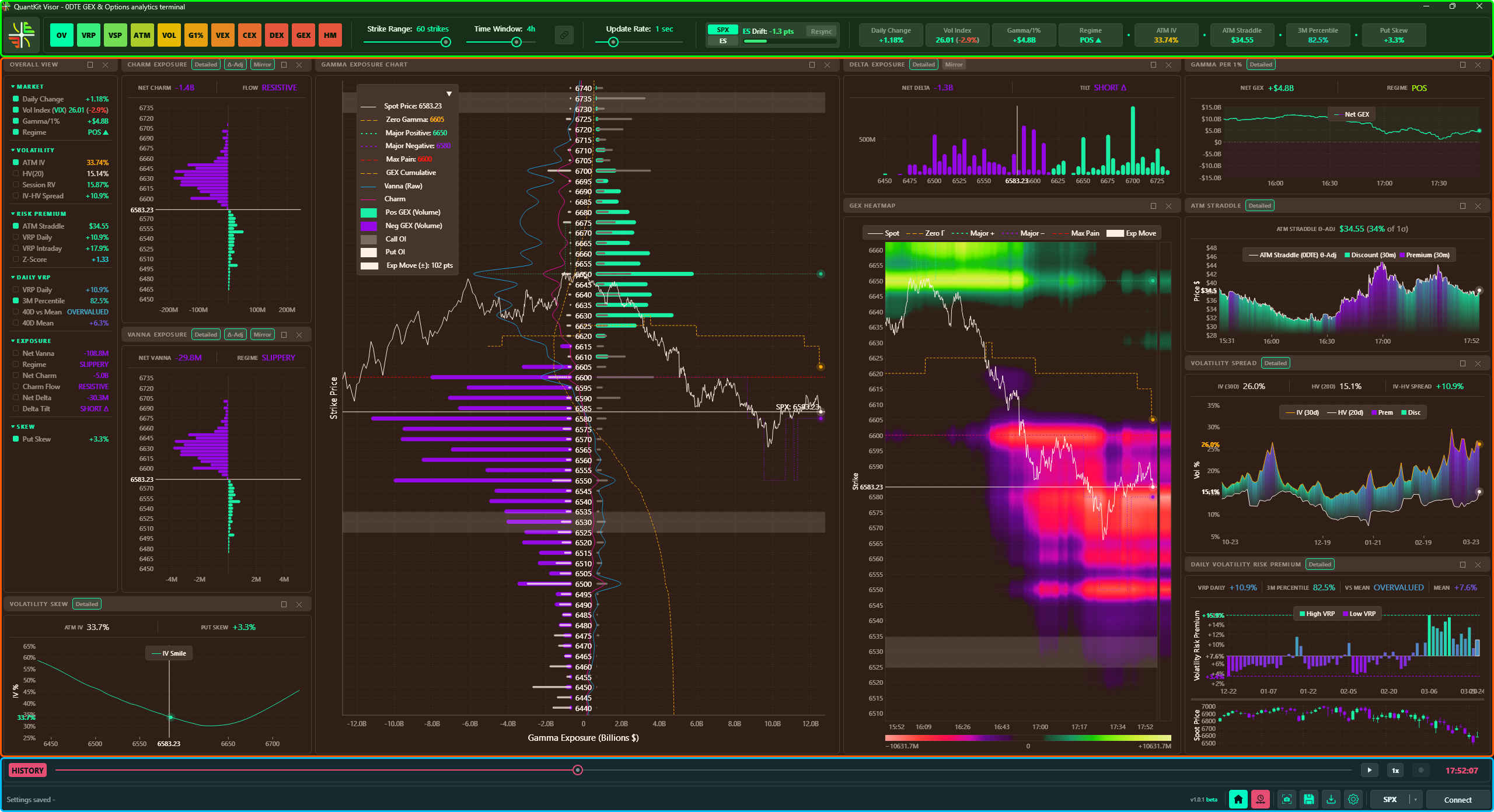
| Area | Description |
|---|---|
| Toolbar | Panel launchers, strike range, time window, refresh rate, futures toggle, and pinned metrics |
| Charts & Panels | Exposure, Heatmap and Options Activity panels (up to three of each); Regime, Daily Volatility Risk Premium, Volatility Spread, ATM Volatility and Volatility Skew; and the Overall View sidebar |
| Status & History Bar | Connection, instrument selector, screenshot, history export/import, settings, timeline slider, and status information |
✨ Tip
You can read a detailed explanation of the metrics in the Overall View panel by simply hovering your mouse over the desired row.
Docking System
Open the panels you need, arrange them once, and Visor restores the layout every time. Panels sit side by side, stack as tabs in one group, or float as their own windows, and every panel has a compact mode (values only) and a full mode (chart).
- Move: drag a panel header. Drop markers show where it will land: beside a panel, as a tab in a group, or at a window edge. Drop it outside the window to float it; drag a floating panel back over the window to dock it.
- Tabs: drag a tab to pull one panel out of a group. Dragging a group’s header moves only the panel on top. When a group runs out of room, extra tabs fold behind a “...” button.
- Resize: drag the gap between panels. It highlights when you grab it.
- Float: a floating panel is its own window, resizable from its edges and corners. It can live on another monitor.
- Maximize: the maximize button in a panel’s header fills the workspace with it. Click again to bring everything back exactly as it was. On a floating panel it fills that screen.
- Close: the close button removes a panel; its launcher opens a fresh one. Closing Overall View only hides it, with its pinned values intact.
- Settings: each panel’s cog opens a drawer with its source, view options and a clickable legend that can be pinned onto the chart. A new copy of a panel starts at factory defaults and keeps its own settings.
Exposure and Heatmap panels side by side at the same strike range line up strike for strike, alone or in a tab group, and recentre together when price moves. New floating panels open offset from each other rather than stacked.
Panels hidden behind a tab do no chart work until you bring them to the front, so a large layout stays light.
💡 Upgrading from 1.5
The first launch of 1.6 opens on the new default layout, theme, colours and panel settings. Your data feed, connection, instrument, recording settings and history are kept.
Toolbar Controls
The top toolbar provides quick access to frequently adjusted settings.
Analytics Panels
The left side of the toolbar contains colored toggle buttons that show or hide each analytics panel. Click any panel below to see a preview.
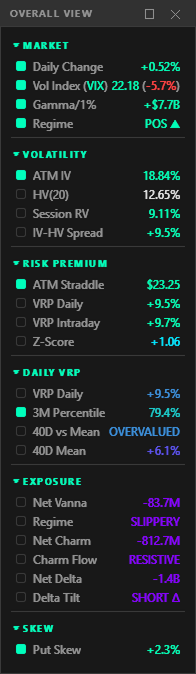
Consolidated sidebar with combined metrics from all panels (Checkboxes allows user to pin the desired metrics to the top bar for quicker access)
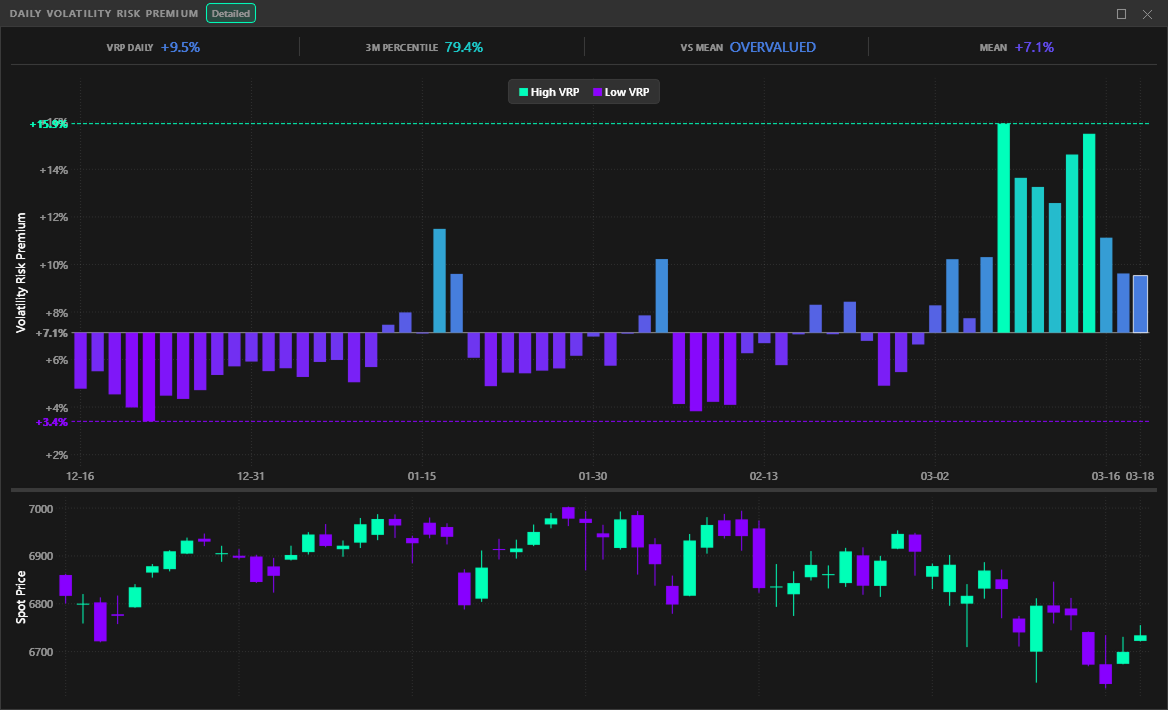
Daily volatility risk premium with 3-month percentile ranking, helping gauge whether current premium is elevated or compressed.
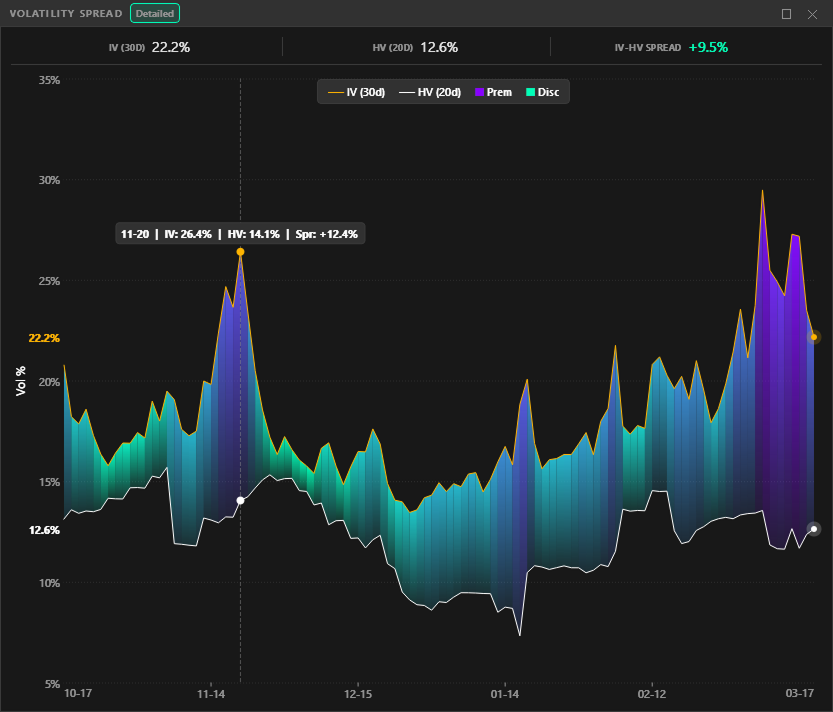
IV vs HV spread with premium and discount zones, tracking whether options are over or underpriced relative to realized moves.
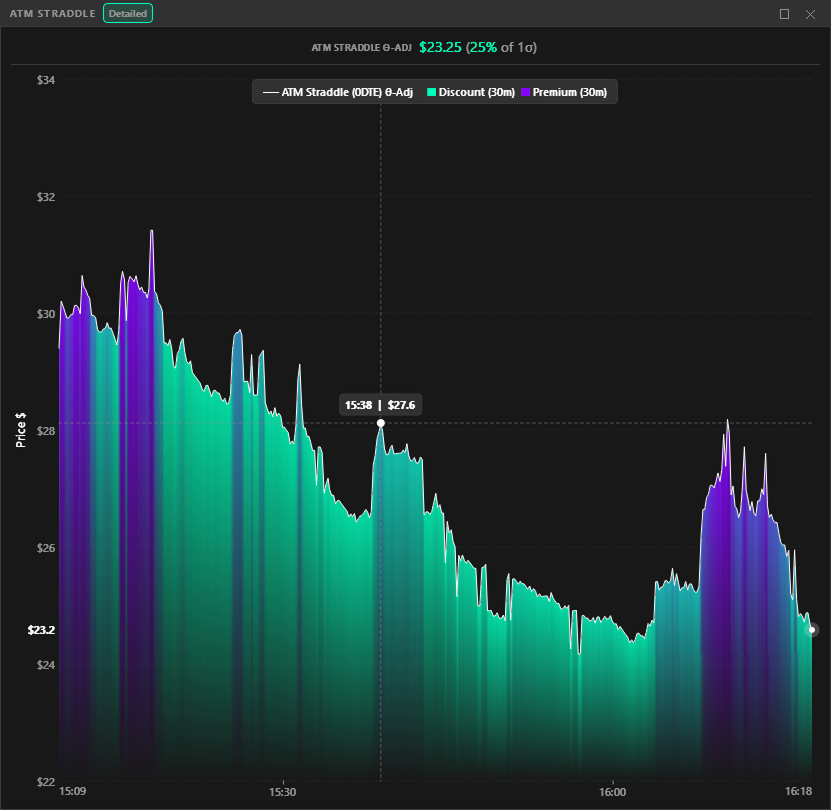
The at-the-money 0DTE straddle through the session, shaded when IV is high or low against its last half hour, with the ATM implied volatility and a ribbon when it moves unusually fast.
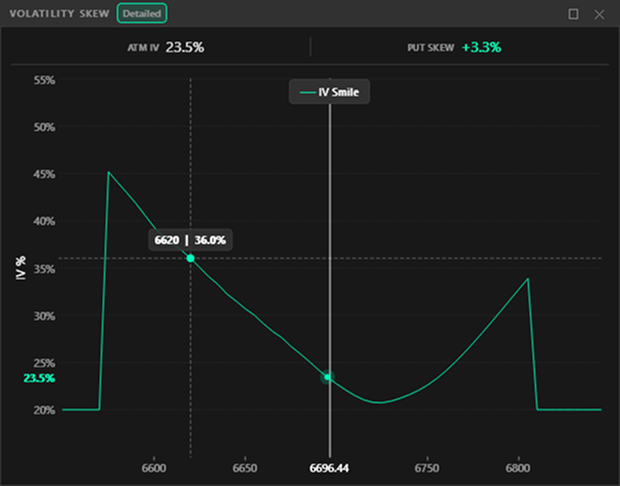
Real-time volatility skew curve with ATM implied volatility and put skew metrics across strikes.
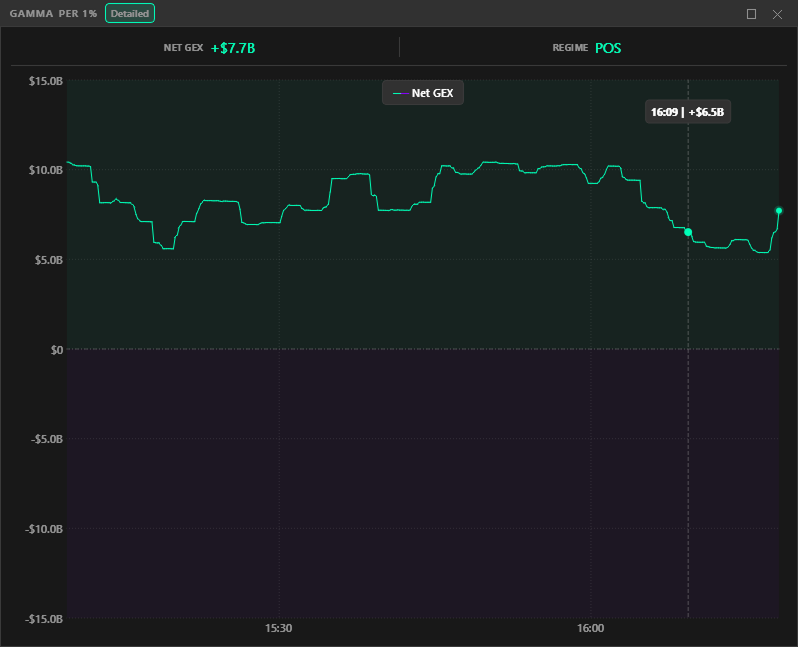
Aggregate net gamma over time with automatic regime detection, showing whether dealers are supporting or accelerating price.
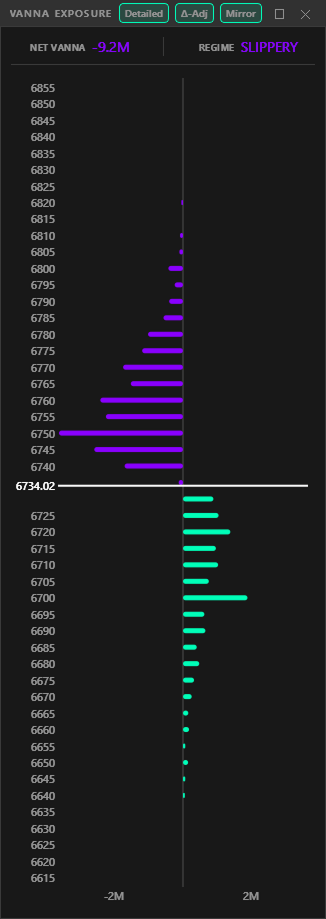
Vanna exposure by strike with flow classification, showing how IV changes translate into directional dealer hedging.
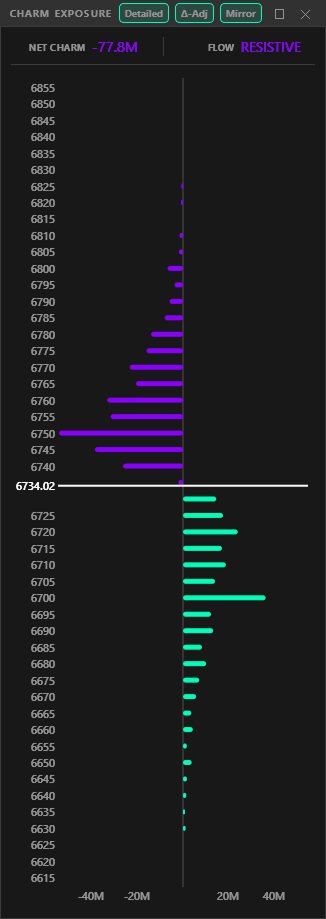
Charm exposure by strike with decay flow analysis, capturing how time decay shifts dealer positioning intraday.
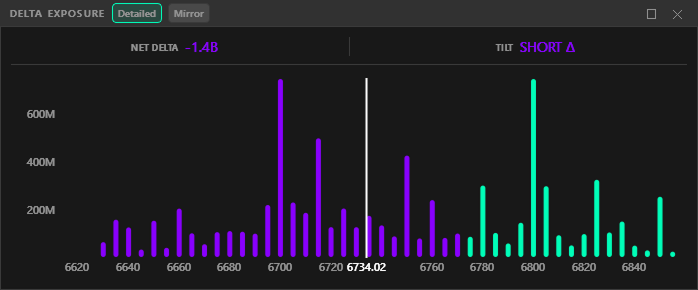
Net delta positioning by strike, highlighting directional dealer exposure and tilt across the options chain.
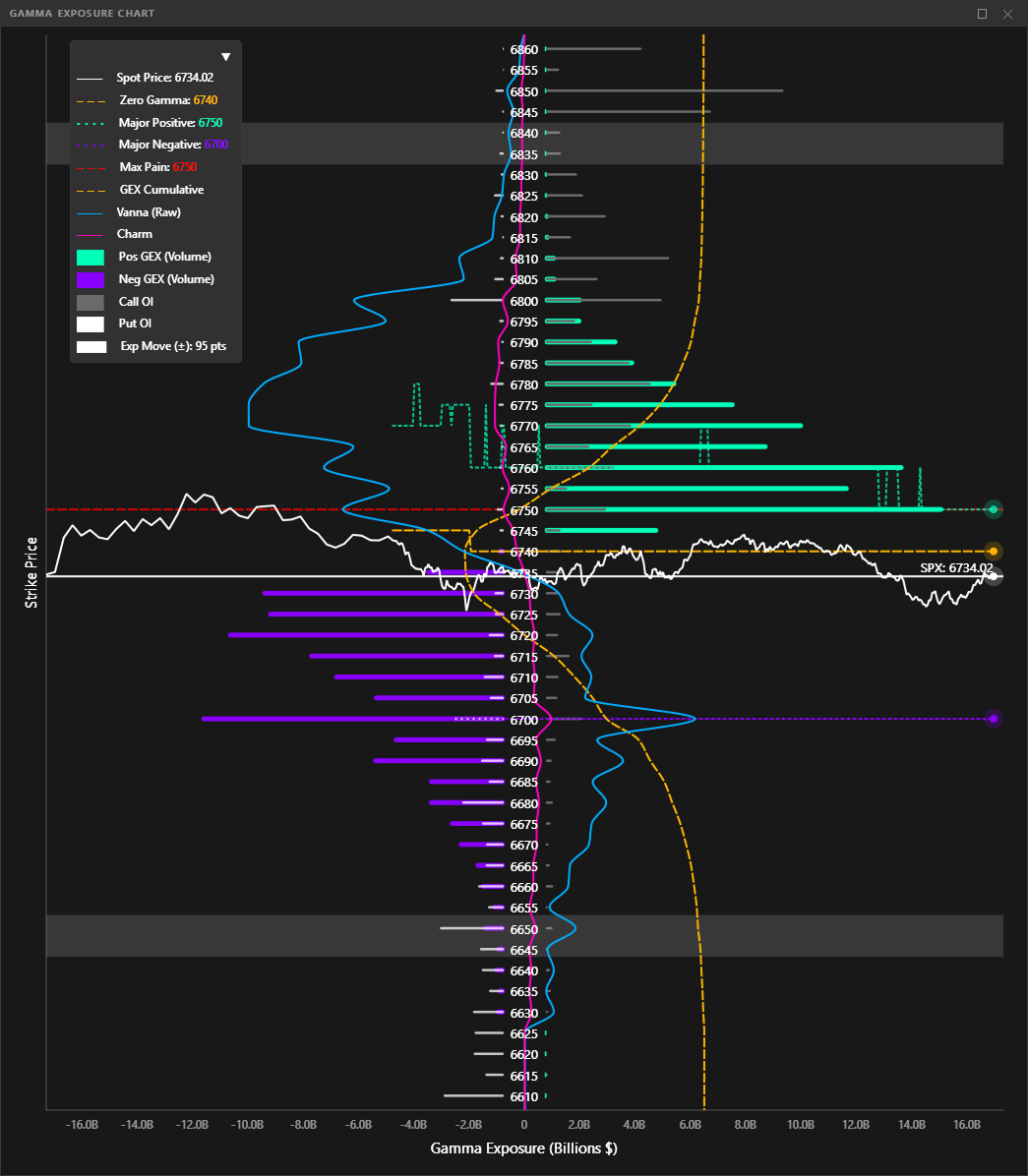
Per-strike gamma exposure with VFlip, max pain, call/put walls, and expected move bounds overlaid in real-time.
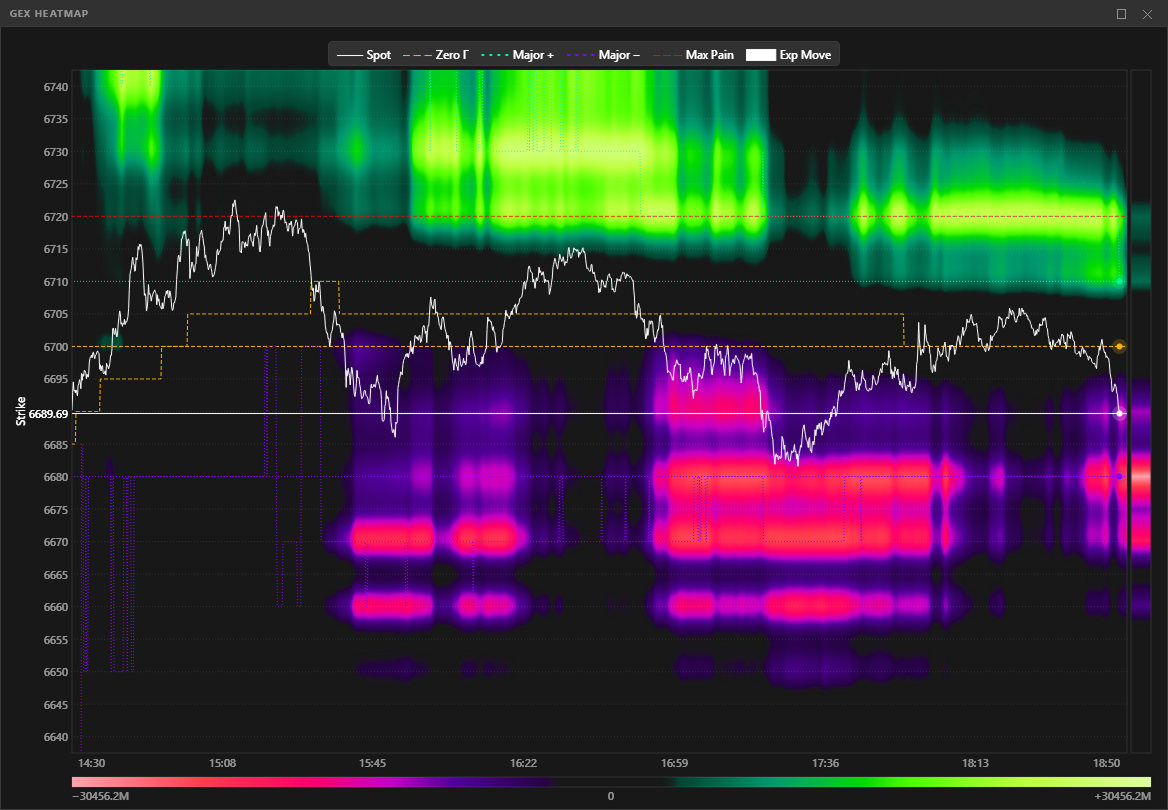
2D heatmap of gamma positioning across strikes and time, showing how dealer exposure evolves throughout the session.
Settings & Filters
| Control | Description |
|---|---|
| Strike Range | Slider (10–60 strikes in steps of 10) — how many strikes are visible around spot |
| Time Window | Filter charts to show only recent data (30min / 1h / 2h / 4h / Full Day) |
| Refresh Rate | How often the data pipeline runs (Streaming / 1s / 2s / 5s / 10s / 30s / 60s) |
| Futures Toggle | One-click toggle to view all analytics on the associated futures price scale |
| Link Button | When linked, all panels share the toolbar’s strike range and time window. When unlinked, each panel can have independent settings |
| Pinned Metrics | Live-updating pill badges dragged from the Overall View — drag to reorder, persist across sessions |
💡 Note
All sliders respond to mouse wheel for quick adjustment.
History Bar
| Element | Icon | Description |
|---|---|---|
| Replay toggle | Start/Pause session replay | |
| Replay rate | 1x | Multi click button that defines playback speed (1x/10x) |
| Go Live | Allow to switch back to live mode when connected (greyed out when disconnected) | |
| Timestamp | 16:30:00 | Timestamp of the most recent snapshot saved when live mode and of the currently viewed snapshot when in history mode |
Status Bar
| Element | Icon | Description |
|---|---|---|
| Control Bar toggle |  |
Show/hide the top toolbar |
| Timeline toggle |  |
Show/hide the history slider |
| Screenshot |  |
Capture main window as PNG |
| Export History |  |
Save current session database to file |
| Load History |  |
Import external session database for playback |
| Settings | |
Open settings dialog |
| Instrument Selector | SPX ▼ | Switch between supported instruments (categorized dropdown) |
| Connection button | Connect | Connect / Cancel / Disconnect — 3-way toggle with non-blocking cancel |
Futures Price Conversion
One-click toggle to view all index-based analytics on the associated futures price scale. This is essential for traders who watch futures (ES, NQ, CL) but need SPX/NDX gamma analytics.

| Feature | Detail |
|---|---|
| Same-scale pairs | SPX/ES, RUT/RTY, NDX/NQ, ESTX50/FESX |
| Cross-scale pairs | SPY/ES (~10x), QQQ/NQ, IWM/RTY, GLD/GC, SLV/SI |
| Drift gauge | Toolbar indicator showing real-time divergence between locked conversion ratio and live ratio |
| Resync | When drift grows too large, click Resync to recalibrate the basis spread between index and futures contract scale. Only available in live mode but baked into history for replay |
| Affected panels | GEX Chart, GEX Heatmap, Vanna, Charm, Delta, Vol Skew — each shows a “Futures” pill when active |
| Works in history | Futures scale persisted to database, replayed correctly during history scrubbing |
💡 Note
The drift gauge updates in real-time. Especially handy for ES daytraders who want to analyze SPX gamma levels without manual conversions.
Settings & Themes
The settings dialog has two tabs: General and Appearance. All changes preview live.
General Tab
API Connection
Configure your IBKR connection. See Connecting to IBKR for a detailed setup guide.
| Setting | Description |
|---|---|
| Client ID | Unique identifier (1–32767), must be unique among all apps connecting to the same TWS/Gateway |
| Port | Must match your TWS/Gateway socket port (TWS: 7496/7497, Gateway: 4001/4002) |
| Market Data Line Limit | Number of concurrent market data subscriptions (50–150, default 100) |
Chart Display
| Setting | Description |
|---|---|
| Grid Opacity | Background grid visibility (0–50%) |
| Line Thickness | Curve & Levels lines weight (1–3px) |
| Bar Thickness | Charts bar width (2–12px) |
| Rounded Bar Caps | Toggle rounded vs flat bar ends |
| Legend Scale | Scale legend text for different monitor sizes (1.0x–2.0x) |
Application
| Setting | Palette | Description |
|---|---|---|
| Always on Top | Keep Visor window above all other windows | |
| Reset UI | Reset to Defaults resets the whole interface: the default arrangement and panels, each panel’s settings, theme and colours. Your data feed and connection settings, the instrument, recording settings and history are kept. For colours only, use “Reset colors to theme” on the Appearance tab | |
| Theme selector: 8 built-in themes | ||
| QuantKit (default) | Classic dark gray with cyan/mint accents | |
| Foundry | Industrial dark with warm orange/coral accents | |
| Forest | Deep woodland greens with mint/coral palette | |
| Marine Blue | Deep ocean with sky blue/aqua accents | |
| Obsidian | Purple-black with soft violet accents | |
| Bloomberg | Terminal black with amber titles and the classic red/green market colours | |
| Monochromatic | Pure grayscale — colorblind-accessible | |
| Light | Warm muted paper — the only light theme | |
Appearance Tab
Each element has a color swatch (picker or eyedropper), an opacity slider, and a line style selector (solid/dash/dot/dashdot) where it draws a line. Levels start told apart: the spot solid, VFlip, Max Pain and the cumulative gamma curve dashed, the walls dotted, GTBR dash-dot. Each level keeps one colour on every source and panel, chosen to stand apart for colour-blind users and well away from the spot’s colour. Styles you set yourself are kept.
| Group | Elements |
|---|---|
| Global | Spot Price, Positive Data, Negative Data, Normal/Elevated/Alert metric level colors |
| Market Levels | VFlip, Expected Move, GTBR, Max Pain |
| Classic Walls | Call Wall, Put Wall |
| GexBot State Levels | The State model’s own levels |
| IBKR Levels | Vanna Flip |
| GEX Chart | Cumulative Gamma Curve, OI Bars |
| Panel Charts | IV and HV lines, the IV Premium and Discount fill of the Volatility Spread chart, Straddle, IV Smile, VRP bars |
Levels with a history also have a display mode: Line (current level), Path (how it moved today), or Both, set from the panel’s legend.
Heatmap Customization
Heatmap surface controls live on each heatmap, not in this tab: a Smooth (diffused surface) or Grid (one crisp cell per strike and snapshot) style, and the Opacity, Contrast, Focus, Glow and Smoothing sliders. The strongest cells always wear the theme’s positive and negative colours.
Legend & Customization
Every panel displays a legend reflecting its active elements. Colors shown in all legends update automatically when you customize them in Settings → Appearance (live preview — changes apply instantly; cancel reverts). You can also adjust the legend scale (1.0x–2.0x) in Settings → Chart Display to fit different monitor sizes.
The GEX Chart & Heatmap legend is interactive — you can:
- Click any legend item to toggle its visibility on the chart
- Choose display mode per element: Line (current level), Path (how it moved today), or Both
- LABELS (legend header) names every level on the price axis: a badge with the name and price in the level’s colour, and a dot where its line meets the chart. Exp Move and GTBR show as ranges, a thin rail joining their high and low edges. On by default
- PIN (legend header) keeps the legend over the chart. LABELS and PIN are independent
Colours you set yourself survive a theme switch; everything you did not touch follows the new theme. Reset colors to theme on the Appearance tab takes everything back to the theme’s own look.
Understanding the Data
⚠️ Important — Data & Model Assumptions
QuantKit Visor computes options analytics from brokerage-level market data (Interactive Brokers), not institutional order flow feeds. Key differences to understand:
No trade direction. Brokerage data provides price, volume, and open interest — but not who is buying or selling. Dealer positioning (long/short gamma) is inferred using the industry-standard assumption that dealers are net short options against customer flow. This is the same framework used by similar platforms that usually charges 50/70$ for it.
Model-derived greeks. Implied volatility and greeks are computed via the Black-Scholes-Merton pricing model through IBKR’s engine. Institutional desks may use proprietary models with additional inputs (flow data, skew surfaces, inventory). Our outputs are analytically sound but represent a model estimate, not observed dealer books.
Especially relevant for 0DTE. While open interest is settled end-of-day (a universal limitation), 0DTE options expire the same session — meaning intraday volume effectively is the live positioning. There is no stale overnight OI to worry about. This makes gamma exposure profiles particularly accurate for same-day expiration trading, where the bulk of retail and institutional hedging activity concentrates.
A complete guide to reading and interpreting the charts and metrics displayed in Visor.
GEX Chart — The Primary Panel
The GEX chart is the core visualization — a per-strike gamma exposure bar chart with multiple overlays showing where dealer hedging pressure concentrates and how it shifts in real-time.
GEX Bars
Per-strike net gamma exposure. The calculation assumes dealers take the opposite side of customer flow (industry-standard convention).
| Bar Direction | Meaning |
|---|---|
| Positive (above zero) | Call-dominated strikes — dealers’ hedging creates a pinning effect, price tends to stabilize |
| Negative (below zero) | Put-dominated strikes — dealers’ hedging amplifies moves in the same direction as price |
Key Levels
| Level | Description |
|---|---|
| Call Wall | Strike with the largest positive GEX, the session’s ceiling candidate. Shifts through the session as new volume accumulates. On GexBot: Major + |
| Put Wall | Strike with the largest negative GEX, the session’s floor candidate. Same dynamic behavior as the call wall. On GexBot: Major − |
| VFlip | Strike where the cumulative gamma curve reaches its minimum, the regime flip point |
| Max Pain | Strike minimizing total option payout at expiration |
| Expected Move | 1-sigma daily range derived from the vol index, anchored at the prior close and fixed for the session. 0DTE only: next-day and weekly expiries do not show it. For the move priced from now to the close, see ATM Volatility |
The market levels (Spot, VFlip, Exp Move, GTBR, Max Pain) show on every source, including State, Vanna, Delta and Charm; each source adds its own levels. GexBot sources and levels use GexBot’s own names. The price axis can sit on the left, in the middle or on the right (Strikes in the panel’s settings).
Cumulative GEX Curve
Running sum of net gamma from lowest to highest strike, revealing the aggregate dealer positioning profile.
- Rising slope — Positive gamma accumulating = stabilizing hedging dominates
- Falling slope — Negative gamma accumulating = amplifying hedging dominates
- The minimum point defines the VFlip level
Gamma Regime
Determined by spot price position relative to VFlip:
- Positive regime (spot above VFlip): Mean-reverting. Dealers sell rallies, buy dips
- Negative regime (spot below VFlip): Trending. Dealers chase price, amplifying momentum
✨ Tip
VFlip is often a volatile area with rejection above and below, a price zone that traps impatient traders and gets revisited many times on balanced days.
OI Bars
Open interest underlay by strike (positions from yesterday’s settlement). Right bars = calls, left bars = puts. OI is static intraday — Visor uses a synthetic OI approximation (baseline OI + cumulative intraday volume) to estimate intraday changes.
Spot Price & Price Path
Current underlying price with live tracking. When futures toggle is active, all chart elements display on the futures price scale while calculations remain index-based.
GEX Heatmap
2D strike × time thermal visualization showing how gamma exposure evolves throughout the session. Each column is a time slice, each row is a strike, and color intensity represents GEX magnitude.
- Positive GEX renders in the green spectrum, negative in the red spectrum
- Spot price path and level paths for VFlip, the walls and GTBR are tracked over time; Exp Move and Max Pain show as levels. Levels are named on the price axis as on the GEX chart
- A disconnection shows as a marked gap, never an interpolated column
- Surface controls live on the heatmap itself: a Smooth or Grid style and the Opacity, Contrast, Focus, Glow and Smoothing sliders
- The strike axis can sit on the left or the right (Strikes in the panel’s settings)
Vanna Exposure (VEX)
How dealer hedging changes when implied volatility shifts. Vanna effects are conditional — they require actual IV movement to materialize (unlike charm).
- Positive net vanna: Sticky. Dealers are long vanna; when volatility moves, their hedging dampens price moves
- Negative net vanna: Slippery. Dealers are short vanna; when volatility moves, their hedging amplifies price moves
Most relevant during news events, economic data, FOMC — any catalyst that moves implied volatility.
Raw vs Delta-Adjusted toggle: Delta-adjusted weights each strike by |delta|, so ATM options (~0.5) contribute more than far OTM (~0.01). Reflects actual dealer hedging intensity more accurately.
Charm Exposure (CEX)
How dealer hedging requirements change as time passes. Unlike vanna, charm is a certainty — time always passes. Critical for 0DTE where theta accelerates exponentially.
- Negative net charm: Supportive. Dealers buy as time passes, an upward drift into the close
- Positive net charm: Resistive. Dealers sell as time passes, a downward drift into the close
Same raw vs delta-adjusted toggle as vanna. Since 1.6, vanna and charm follow the standard textbook definitions, so their values differ from earlier versions; sessions recorded before keep theirs.
💡 Note
The 3–4 PM ET “Charm Hour” is when this effect reaches its peak. Knowing which direction dealer hedging MUST fade into the close — regardless of price action — is a significant edge.
Delta Exposure (DEX)
Net dealer directional positioning derived from Open Interest (structural positioning), not intraday volume.
- Positive — Dealers long delta at this strike
- Negative — Dealers short delta at this strike
- Net delta tilt (Long/Short) shown in compact mode
Key difference from Vanna/Charm: Uses OI for structural positioning rather than volume for intraday flow. No delta-adjusted toggle since delta IS the metric.
Net Gamma / 1% Move (G1%)
Intraday time series of aggregate net gamma across all strikes — the “pulse” of the gamma regime.
- Line is regime-colored: green when positive gamma (stabilizing), red when negative (amplifying)
- Zero crossing = gamma regime flip
- Displayed in $/1% move in compact mode
Volatility Risk Premium (VRP)
The premium traders pay for implied volatility over what the market actually realizes.
VRP Global = (Vol Index / 100) − HV(20)
- Green ≥ 0 = IV overpriced (favor selling premium)
- Red < 0 = IV underpriced (favor buying premium)
VRP Intraday = ATM IV (0DTE) − Session RV, updated in real time through the session. Session RV is today’s realized volatility from 1-minute returns, annualized on calendar minutes (the Cboe convention), so it compares like for like with an implied volatility.
Since 1.6, Session RV, VRP Intraday and IV Rank follow these standard definitions, so their values differ from earlier versions. Sessions recorded before keep their original values.
Z-Score = (current VRP − mean) / std VRP (from ~100-day rolling distribution)
| Z-Score | Interpretation |
|---|---|
| Z > 2.0 | Extreme — historically elevated premium |
| Z > 1.0 | Elevated — above average premium |
| Z < 1.0 | Normal range |
Full panel shows a daily VRP histogram (last ~40 trading days) centered on distribution mean, providing context for whether today’s premium is historically high or low.
Volatility Spread (VSP)
30-day implied volatility (from vol index) vs 20-day historical volatility, plotted over time with gradient crossover fill.
- Green fill when IV > HV — implied premium, options relatively expensive
- Red fill when HV > IV — implied discount, options relatively cheap
ATM Volatility
The at-the-money 0DTE straddle through the session: the move priced from now to the close, and the volatility that price implies. It replaces the ATM Straddle panel of earlier versions; open it from its button in the top bar.
- Straddle (points): the move the market prices to the close. It shrinks through the day as time runs out; that shrinking is part of the answer. The header also shows it as a share of spot, for example “$19.70 (±0.26%)”.
- Its colour, IV high / low: how far IV sits from its 30-minute average, in standard deviations (Z, shown in the header and on hover). Beyond ±2.5σ the colour is full. Z starts 5 minutes after you connect and reads “settling” until it has a full half hour of data.
- IV (%): the at-the-money implied volatility, the same definition on every feed and the same value used by the ATM IV card, VRP and Volatility Skew.
- IV speed (ribbon): IV’s move over the last 5 minutes against its usual 5-minute moves over the past hour. It lights up when IV rises or falls unusually fast; it says something is happening now, not what comes next.
Each reading can be shown as a chart pane or a colour ribbon from the panel’s legend. On GexBot, which sends no option prices, the straddle is built from implied volatility and labelled “(Implied)”.
💡 The last hour is hatched
Late in a 0DTE session IV climbs by nature, since any risk left is a large number once annualized over minutes. The pricing is real and shown as is, but Z and the IV speed read high by construction there: do not read the hatched colours as “IV unusually high”.
IV Smile / Skew (VOL)
Call IV and Put IV plotted against strike prices — the full volatility skew structure.
Put Skew = 25-delta Put IV − ATM IV, in vol points (for example 2.3 means the 25-delta put is 2.3 vol points above ATM)
- Measures how much more expensive downside protection is relative to ATM
- Higher put skew = more demand for downside hedging = fear premium
Always shows the full 60-strike range (not affected by toolbar strike range slider).
Overall View (OV)
Central metrics dashboard — all key values at a glance. Hover any row for a detailed explanation.
| Section | Metrics |
|---|---|
| Market | Net Gamma ($/1% move), Daily Change (%), Gamma Regime |
| Volatility | ATM IV, Vol Index, HV(20), Session RV, IV-HV Spread |
| Risk Premium | ATM Straddle, VRP Daily, VRP Intraday, Z-Score |
| Daily VRP | VRP Daily, 3M Percentile, 3M vs Mean, 3M Mean |
| Exposure | Net Vanna + Regime (Sticky/Slippery), Net Charm + Flow (Supportive/Resistive), Net Delta + Tilt (Long/Short) |
| Skew | Put Skew (%) |
Key metrics are color-coded: Normal (green) / Elevated (amber) / Alert (red) based on dynamic thresholds. Any metric can be pinned to the toolbar as a live-updating pill badge.
Support & Resources
Best practices for using Visor, session management, and where to get help.
Best Practices
Daily Session Initialization
The application automatically creates a new session at 9:30 AM ET when the market opens. This is triggered when the settings window is open while connected to the API.
💡 Expected freeze: 10–30 seconds
This is normal behavior. Visor retrieves Open Interest data (a heavy operation) and initializes the new session. First connection of the day takes longer than subsequent reconnections.
Data continuity: Previous session data remains visible until new data arrives.
End of the Trading Day
The day stops at the options close. At 16:00 New York, Visor stops recording, keeps the day’s final picture on screen and shows “Day closed” with the time the next session opens. Nothing is recorded until then, and the next day starts fresh in a new file. On IBKR, a running session moves to the next expiry by itself.
Early-close days are handled: on the day after Thanksgiving, Christmas Eve and July 3, the 0DTE day ends at 13:00 New York, with greeks, the straddle and the expected move on the true clock.
Instance
The use of Visor is currently limited to one instance per user at a time. This is to protect user to overload API subscription.
Session Handling
Automatic Data Management
QuantKit Visor always displays the most recent trading day by default, allowing you to replay the current session at any time using the history slider.
Each trading day generates a database file (ex: Instrument_Visor_YYYY-MM-DD.db) to your local system at:
user/appdata/quantkit/historical_data/
It saves all the context with all metrics and graphic representation of the day.
Storage Management
- To optimize disk space, the application retains only the 5 most recent per instrument historical days’ data
- Older sessions are automatically deleted
- If you want to preserve specific days for replay or analysis, you can save them directly from Visor using the Save History button or simply go to your local file and copy the historical file for the day
History Slider Behavior
When connecting to API and market is open, Visor will auto switch to live mode if:
- Slider is at end position of timeline
- No historical data is imported / opened / available
History Mode: Drag slider to replay any point in the session.
Replay Mode: Play / Pause button to initiate sequence autoplay and adjust the speed with the playback rate button.
Go Live button: Appears with red dot when viewing history and live data is available.
Troubleshooting
Connection Handling
Visor handles connection issues automatically:
- Lost connection: Visor reconnects on its own, with no dialog to click, and keeps trying until TWS or the Gateway is back. Its progress shows in the status bar
- Data stops arriving: on every feed, the Connect badge turns amber and reads Stale while no new data comes in during market hours. Charts keep the last data and everything returns to normal when the feed resumes
- Empty panel: a panel with nothing to draw says why, for example “No greeks from the feed” or “Options chain still loading”. Incomplete data is never recorded
Common Issues
| Issue | Solution |
|---|---|
| Can’t connect to TWS/Gateway | Verify API is enabled and port numbers match (see Connecting to IBKR) |
| No data appearing | Check your IBKR market data subscriptions are active |
| App freeze at 9:30 AM | Normal — initialization takes 10–30 seconds for OI data retrieval |
| Client ID conflict | Change the Client ID in Visor settings to avoid conflicts with other API applications |
Getting Help
WHOP Support Chat
Access instant support directly through QuantKit’s WHOP storefront.
whop.com/quantkit-software/chat → Support Chat
Discord Community
Join our Discord server for community discussions, bug reports, and feature requests.
Important: Join through your WHOP dashboard to automatically receive your verified user role.
Claim Discord access directly through QuantKit’s WHOP: whop.com/quantkit-software/discord → Claim access
Video Tutorials
Step-by-step guides for setup, features, and trading strategies.
YouTube — QuantKit Visor Tutorials
Account Management
Manage your subscription, update payment methods, or view invoices directly on WHOP.
Need to transfer? Simply reset your Software key through your QuantKit’s WHOP dashboard: whop.com/quantkit-software → Software → Reset license key
✨ Found a bug? Have a feature idea?
We’d love to hear from you. Use the #bug-reports or #feature-requests channels in Discord, or reach out via WHOP support chat.
Usage Statistics
Visor sends basic, pseudonymous usage statistics so we can see how the tool is used and whether updates install correctly. This works the same on every feed and runs in the background, with nothing on screen.
What Is Sent
- Every license check (at launch and every 15 minutes) also counts your machine as active today, with the app version and your country.
- About a minute after launch, then every 15 minutes: the data feed, the instrument, whether Visor is live, replaying a recording or idle, and whether the previous run ended normally.
- That is the complete list. No market data, no settings, no files, no license key, no name, no email.
How It Is Protected
- Your machine is stored as a coded identifier that changes every month; about a month after a month ends, nobody can link its data to a machine again, including us.
- Statistics are only ever looked at in aggregate (how many users, which versions), never per person.
- Your IP address is never stored; only the country is kept, as provided by our hosting provider.
- Data is stored in the European Union and deleted after 13 months.
- Sending never slows Visor down: it runs in the background, and a failed send is simply skipped.
Turn It Off
- Close Visor completely.
- Open
%LOCALAPPDATA%\QuantKit\Visor\config.json(paste the path into File Explorer’s address bar). - In the
"APP_SETTINGS"section, add"usage_statistics": false,then save.
Visor then sends no usage statistics and asks not to be counted in license checks. Reset settings keeps this choice.
💡 Good to Know
License checks themselves continue with the setting off: activation needs them. Edit the file only while Visor is closed, since Visor rewrites its settings file while it runs and could overwrite your change. The full description is in our Privacy Policy.